
 Browse help by topic
CUSTOMIZE YOUR WORKSPACE
There are several options for customizing your DisasterAWARE workspace and experience:
-
Choose custom language preferences and time zones (see section on Account, language, and time zone preferences).
-
Change the default background map, zoom extent, and visible layers.
-
Customize your layers panel.
Customize your default map view
You can customize the default map view so when you login into the system it appears with the desired background map, zoom extent, and the visible layers. To learn more about customizing maps, see the section above on how to Create custom maps.
 |
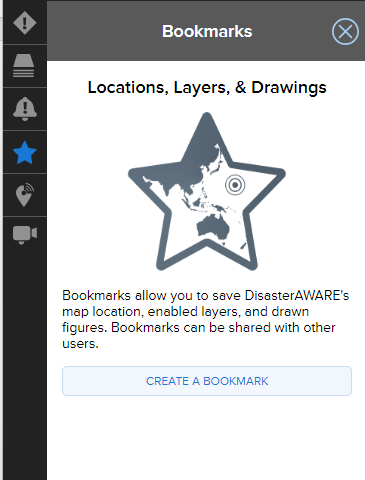
Once you have your map set up the way you want it to appear at each login, click the Bookmark icon on the left toolbar. Next, follow the steps for creating a bookmark in the section titled Bookmark frequently used layers. If this is your first time creating a Bookmark you will see the following view. Click on Create a Bookmark. |
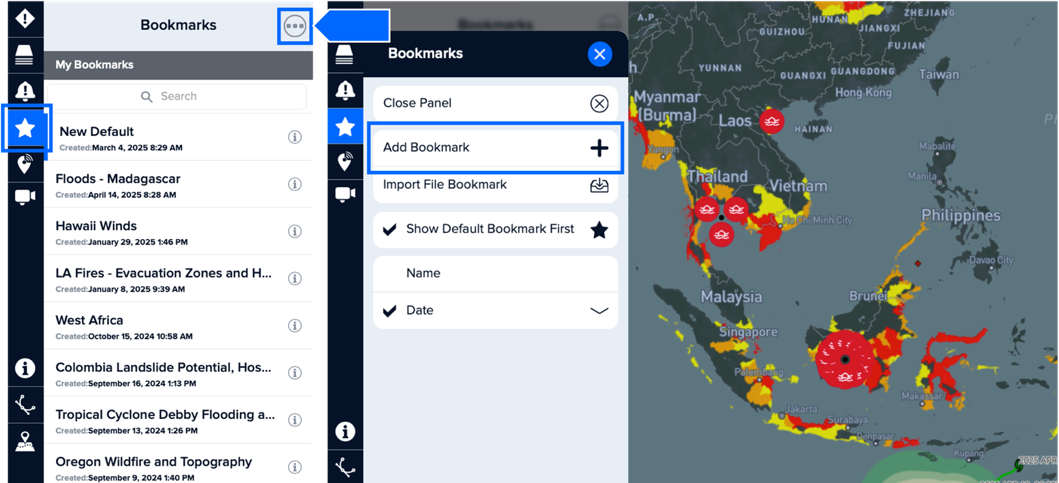
If you have created Bookmarks before, click on the three dots at the top of the Bookmark panel, followed by the Add Bookmark + option.
Choose the Extents and Layers option, Create Bookmark button, and give your new default bookmark an easily identifiable name like “Default map.” Learn more about creating bookmarks in the section Bookmark and share information above.
Once your default map bookmark has been created, you are now ready to assign the bookmark to your default map view.
|
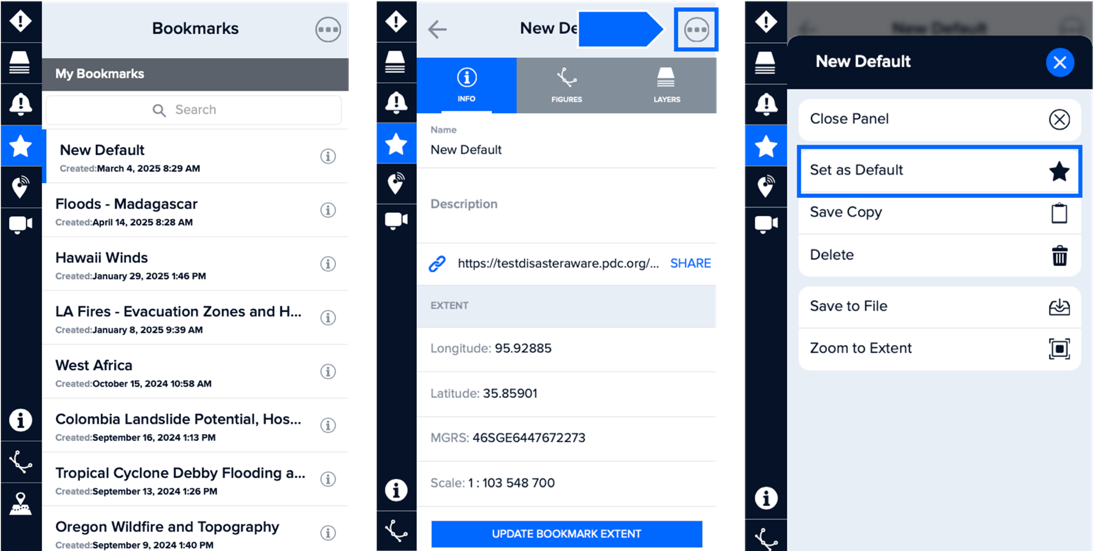
Click the Bookmark icon from the left toolbar, and then choose the bookmark you just created. Select the three dots from the upper right panel and choose Set as Default. Your default bookmark will now be the view you see each time you login to the system. |